I would like to thank whoever has taken the time out to read my blog. It was quite an interesting journey I must say starting out from learning about UDL and it's practice all the way to here which is AT, the IEP process, and transitioning into college. I first began learning about UDL and why it was necessary. I was introduced to some great websites and I have used many of the basic principles of UDL in my own practice. I also have become more familiar with many low-tech, mid-tech, and high-tech options available to students with disabilities. Before this blog and this class, I would not have felt comfortable exploring AT devices for my students. Now I feel that although I may not readily know how to use a device or what needs to be done to get that device, I now have a wealth of knowledge to help me from that first IEP meeting up until the implementation of AT as well as the steps to walk me through everything
Overall, the biggest lesson I will take away from this class and this blog is the need for students with disabilities to feel independent. It should be as teachers our ultimate goal for students to have the tools necessary to lead healthy lives independent of our assistance. This is what we must keep in mind at that first IEP meeting. We must envision this for ALL of our students regardless of their disability.
Monday, April 21, 2014

Implications For Transitioning Planning.....
It is important for students with disabilities to have access and use technology efficiently when they get to college. However, they must be able to make that transition as smoothly and effectively as possible. This is why it is very important for students to be prepared in high school. IDEA mandates transitioning planning at 16. This is meant so that students with disabilities can have 2 to 3 years to prepare and be successful in college. Transitioning planning should include assistive technology skills for independence and self-advocacy skills. Additionally, protection for students in K-12 is different for those in college. Therefore, students must adequately prepare for the next step in their lives. Independence is very important. Functional skills, operational skills, as well as social skills must be fostered early on for guaranteed success later on.
Assistive Technology as a Reasonable Accommodation
In our assistive technology class we had a guest speaker come and speak to us about assistive technology at Cabrini College. I know that students with disabilities are covered under the ADA and can receive 504 accommodations. However, what I didn't know was that there is an office dedicated to assisting students with disabilities. We talk about transitioning into college in the IEP process but we don't really discuss what that looks like. I found the speaker who came to our classroom to be very helpful. She put a face to what we are actually learning in class. What accommodations and AT options are available for college students such as myself?
Assistive technology can be used to help college students during classes and in testing scenarios. Completing assignments can be done using many of the computer modifications I discussed about earlier on in my journey, such as keyboard and mouse adaptations. Additionally, the guest speaker gave us a handout of resources for software she recommends to the students here at Cabrini. Many of these resources I have discussed in much earlier blogs such as the Live Scribe Pen and voice recognition software. Just remember to keep in mind that assistive technology has to be the choice of the student. Also, it should be age appropriate as well as easy to use and customize.
Assistive technology can be used to help college students during classes and in testing scenarios. Completing assignments can be done using many of the computer modifications I discussed about earlier on in my journey, such as keyboard and mouse adaptations. Additionally, the guest speaker gave us a handout of resources for software she recommends to the students here at Cabrini. Many of these resources I have discussed in much earlier blogs such as the Live Scribe Pen and voice recognition software. Just remember to keep in mind that assistive technology has to be the choice of the student. Also, it should be age appropriate as well as easy to use and customize.
UK Assistive Technology Toolkit
The University of Kentucky has assembled an assistive technology toolkit online. How awesome is that! This is very similar to the website I previously blogged about in that it offers worksheets to use to help implementation of AT. These include a pre-assessment profile, assessment planning and data collection, and report outline. What makes this particular site different from the one below is that it offers mostly worksheets to follow and implement AT. There's also a Toolkit Overview with a slide show presentation that defines assistive technology and discusses the uses for the worksheets. I found the worksheets to be most helpful in explaining the implementation process.
Making it Work: Effective Implementation of Assistive Technology
/www.setbc.org/setbc/topics/effective_implementation_of_assistive_technology.html
This particular resource I found to be most helpful simply because it focuses on the steps involved in the AT implementation process rather than focusing on the specific technology being chosen. I think this site is great for teachers who may not feel comfortable and confident introducing an AT device. I know for me as a teacher, the implementation process would be the most difficult. This website breaks down the process into seven sections each in PDF format. Topics range from Gather Relevant Information, Conduct Assistive Technology Trials, and Develop AT Implementation Plan. There are also related resources as well as detailed explanations and examples. I would recommend this resource to an IEP team that has already chosen or is in the process of finding an AT device.
This particular resource I found to be most helpful simply because it focuses on the steps involved in the AT implementation process rather than focusing on the specific technology being chosen. I think this site is great for teachers who may not feel comfortable and confident introducing an AT device. I know for me as a teacher, the implementation process would be the most difficult. This website breaks down the process into seven sections each in PDF format. Topics range from Gather Relevant Information, Conduct Assistive Technology Trials, and Develop AT Implementation Plan. There are also related resources as well as detailed explanations and examples. I would recommend this resource to an IEP team that has already chosen or is in the process of finding an AT device.
Friday, April 11, 2014
Augmentative Device Design
Using an augmentative communication device at school is one thing. But what about when that student goes to their local library or grocery store? The community may not be ready to accept this particular form of communication. They also may not be aware of its use or purpose. This can present a challenge for the user who may feel intimidated to use their augmentative device in an unfamiliar setting. Some strategies for anticipated barriers are field trips into the community. The devices can be programmed to ask certain questions and community workers or helpers can also participate by answering questions. This will enable students to familiarize themselves with unfamiliar people but also to introduce the device ahead of time so future interactions will be more comfortable.
Thursday, April 10, 2014
Home and Community Use
Imagine not being able to tell your mom or dad that you love them. Imagine not being able to play a game with your sister or brother, or not be able to talk to your neighbors. Well this is the case for many students with disabilities that leave them unable to communicate. Having an augmentative device is great to use to answer questions at school or participate in a class discussion. But imagine how much value comes from being able to communicate with your love ones or being an active member of your community.
Students must practice using their devices at home and within their communities. It reinforces what is being learned in school and generalizes its use into all settings. There must be a working home school relationship that will ensure that the augmentative communication use reflects the diverse needs of the students and their family. Parents and family members should also be trained on the use of the device.
Students must practice using their devices at home and within their communities. It reinforces what is being learned in school and generalizes its use into all settings. There must be a working home school relationship that will ensure that the augmentative communication use reflects the diverse needs of the students and their family. Parents and family members should also be trained on the use of the device.
Integrating Augmentative Communication into the IEP
We talked about in earlier posts how ALL students should be given AT considerations at the IEP meeting regardless of their disability. When developing the IEP, consideration for an augmentative communication device should definitely be considered for non-verbal students. Once deemed to be necessary, not only should the system components be specified, but the augmentative device itself should be included as apart of the educational plan. A student's goals should integrate an augmentative device as the vehicle through which they will be evaluated and achieve their goals. Students should also have the opportunity to practice communicating using the device within their educational program keeping the IEP goals in mind. Additionally, the device should really be used in all settings throughout the student's day to maximize it's effectiveness. There should also be included in the IEP, a list of related services provided and who will be responsible for the augmentative device maintenance.
Wednesday, April 9, 2014
Learned Helplessness for Augmentative Communication Users
Students who use augmentative communication devices must be active participants inside the classroom. I have never had a student in my classroom with an augmentative device. However, teachers need to model effective ways to invite them to actively participate in an activity, lesson, or special event. Some students have developed what is known as learned helplessness. This simply means that this particular population of students are sometimes more and likely accustomed to others doing things for them or speaking for them. They need to be taught that they now have a voice. Teachers can implement specific strategies to help students overcome learned helplessness.

Specific Strategies for Overcoming Learned Helplessness:
- building expectations for communication (especially during activities throughout the day)
- Daily home and school communication through the student
- Give room for natural consequences
- Allow opportunities for choice making that require students to use their device
- Give students autonomy by creating a powerful phrase to use
Educational Application Research....
Never underestimate the power of a good Google search. I decided to see what the "average" teacher might find if they ventured out on their own and tried to find educational applications for teaching math. I typed in the phrase, "educational applications in math" and found a ton of websites that had generated lists of different websites, apps, and games, along with descriptions for each. I also typed in "educational applications in math for students with disabilities". I didn't get as many resources and websites as the initial search, however I think that if you have time to weave through each of the following links you can definitely find something that would suit your students.
Resources~
1. Parents Magazine- 10 Best Math Apps for Kids
http://www.parents.com/kids/education/math-and-science/best-math-apps-for-kids/
2. Fun and Educational Math Apps for Kids-
http://appadvice.com/applists/show/fun-math-apps-for-kids
3. Math Apps and Learning Tools for Kids- Common Sense Media
https://www.commonsensemedia.org/lists/math-apps-and-learning-tools-for-kids
4. The Best Math Apps for Kids-
http://bestappsforkids.com/category/apps-for-education/math-apps-apps-for-education/
5. The Best Math Apps For Children- iPhone, iPad, and Android Apps
http://www.pcadvisor.co.uk/features/software/3380559/best-maths-apps-for-children/
Resources~
1. Parents Magazine- 10 Best Math Apps for Kids
http://www.parents.com/kids/education/math-and-science/best-math-apps-for-kids/
2. Fun and Educational Math Apps for Kids-
http://appadvice.com/applists/show/fun-math-apps-for-kids
3. Math Apps and Learning Tools for Kids- Common Sense Media
https://www.commonsensemedia.org/lists/math-apps-and-learning-tools-for-kids
4. The Best Math Apps for Kids-
http://bestappsforkids.com/category/apps-for-education/math-apps-apps-for-education/
5. The Best Math Apps For Children- iPhone, iPad, and Android Apps
http://www.pcadvisor.co.uk/features/software/3380559/best-maths-apps-for-children/
Tuesday, April 8, 2014
Virtual Manipulatives
I visited one of the Virtual Manipulative websites I mentioned below. I went to the National Library of Virtual Manipulatives (http://nlvm.usu.edu/en/nav/category_g_2_t_1.html). It offers manipulative activities in grades K-12. I clicked on the Numbers and Operations grid and clicked on the numbers chart manipulative in both the K-2 range and the 3-5 range. I was able to start and move the hundreds chart to whatever number I chose using the arrows to move up and down. Students can use this specific manipulative which is the hundreds chart to practice counting and visualize number patterns. The hundreds chart supports PA common core standard which states to demonstrate the relationship between numbers and quantities, including place value; one-to-one correspondence; rote counting; counting by twos, fives and tens; and comparing values of whole numbers up to 500.
I can see this specific manipulative enhancing learning in the classroom by enabling students who have a disability or even students who don't have a disability the ability to count by setting the hundreds chart to whatever value they want. Students won't make some of the mistakes they commonly make like skipping numbers or losing their spot. I have my students rely on their hundreds chart a lot in my classroom. This website could only make it more accessible and much easier.
I can see this specific manipulative enhancing learning in the classroom by enabling students who have a disability or even students who don't have a disability the ability to count by setting the hundreds chart to whatever value they want. Students won't make some of the mistakes they commonly make like skipping numbers or losing their spot. I have my students rely on their hundreds chart a lot in my classroom. This website could only make it more accessible and much easier.
Educational Applications to Teach Math Concepts, Skills, and Problem Solving
Now that we are familiar with educational applications that address automaticity, math fact fluency, visual-spatial and motor control, here are some more educational applications that address math concepts, math skills, and problem solving:
Virtual Manipulatives- to support the development of math concepts in numbers and operations, algebra, geometry, measurement, or data analysis & probability. Users can navigate these sites and take advantage of extended practice, visual representation, interactive activities, and online resources. Virtual manipulatives are available through some of the following websites:
National Library of Virtual Manipulatives
Computing Technology for Math Excellence
Internet4classrooms
Virtual Laboratories in Probability and Statistics
Math Playground- provides free online math activities in the form of math games, word problems, and logic puzzles
Conceptua Math- focuses on fractions and provides visual models accompanied by spoken text
Destination Math- targets math reasoning, conceptual understanding, and problem solving for students in grades k-12. It uses animation and graphics to engage students
Virtual Manipulatives- to support the development of math concepts in numbers and operations, algebra, geometry, measurement, or data analysis & probability. Users can navigate these sites and take advantage of extended practice, visual representation, interactive activities, and online resources. Virtual manipulatives are available through some of the following websites:
National Library of Virtual Manipulatives
Computing Technology for Math Excellence
Internet4classrooms
Virtual Laboratories in Probability and Statistics
Math Playground- provides free online math activities in the form of math games, word problems, and logic puzzles
Conceptua Math- focuses on fractions and provides visual models accompanied by spoken text
Destination Math- targets math reasoning, conceptual understanding, and problem solving for students in grades k-12. It uses animation and graphics to engage students
Technology Tools to Address Visual Spatial or Motor Control
Many students with disabilities have limited handwriting capabilities. So what educational applications are available for these students? We have already learned so much about educational applications and their usefulness. Honestly as a teacher and a parent I didn't know there was so much technology readily available to assist with math. Well here are some educational applications that minimize the handwriting demands of math work for students with visual-spatial difficulties:
1. MathPad- is a talking math worksheet program that allows students to perform arithmetic computations on the computer as if they were using pencil and paper.
2. MathPad Plus- has all the features of MathPad plus fractions and decimals.
3. Virtual Pencil Arithmetic- designed for "pencil impaired"students (blind, or have motor impairments, or learning disabilities). It allows students to solve problems by offering feedback by reading the problems so students can navigate it even if they can't see and offers a "tutor" to assist with problems.
4. Number Navigator- uses an application for creating mathematical expressions or equations to enter and solve basic math problems on the computer. Colors, fonts, and sizes are customizable.
5. Microsoft Word- Microsoft Equation Editor enables students to who have difficulty writing, but good mouse control to create equations in correct mathematical notation. Symbols are provided and entered by a click of the mouse.
6. Scientific Notebook/Math Talk- Students can input math calculations by voice and then print their completed work to be handed in. It must be used with Dragon Software.
7. Efofex Software- written for teachers by teachers to make math teachers' job easier. It provides computerized ways to construct geometric figures, write equations, create graphs, and create statistically correct images.
1. MathPad- is a talking math worksheet program that allows students to perform arithmetic computations on the computer as if they were using pencil and paper.
2. MathPad Plus- has all the features of MathPad plus fractions and decimals.
3. Virtual Pencil Arithmetic- designed for "pencil impaired"students (blind, or have motor impairments, or learning disabilities). It allows students to solve problems by offering feedback by reading the problems so students can navigate it even if they can't see and offers a "tutor" to assist with problems.
4. Number Navigator- uses an application for creating mathematical expressions or equations to enter and solve basic math problems on the computer. Colors, fonts, and sizes are customizable.
5. Microsoft Word- Microsoft Equation Editor enables students to who have difficulty writing, but good mouse control to create equations in correct mathematical notation. Symbols are provided and entered by a click of the mouse.
6. Scientific Notebook/Math Talk- Students can input math calculations by voice and then print their completed work to be handed in. It must be used with Dragon Software.
7. Efofex Software- written for teachers by teachers to make math teachers' job easier. It provides computerized ways to construct geometric figures, write equations, create graphs, and create statistically correct images.
Applications to Address Automaticity/Math Fact Fluency
Automaticity can be defined as the fast, accurate, and effortless processing of content information. Another term for automaticity that's commonly used is called math fluency. Both automaticity and computational fluency are both important benchmarks for students. It is even more difficult if you are a student with a disability. Some low-tech and mid-tech resources include, addition and multiplication charts, and calculators which help compensate for poor automaticity. Automaticity frees up working memory for more complex tasks. This sort of assistive technology allows students with disabilities to focus more on higher order thinking skills.
Educational applications that address automaticity and math fluency are intervention programs such as FASTT Math. This program assesses students' command of basic facts by measuring response time and then generating activities based on the results. Timez Attack (Big Brain) focuses on multiplication facts. It engages students in a high-tech video game with high quality graphics. Another example is ArithmAttack. Students can practice basic addition, subtraction, multiplication, and division facts. Problems can be customized to target students' particular areas of need.
Educational applications that address automaticity and math fluency are intervention programs such as FASTT Math. This program assesses students' command of basic facts by measuring response time and then generating activities based on the results. Timez Attack (Big Brain) focuses on multiplication facts. It engages students in a high-tech video game with high quality graphics. Another example is ArithmAttack. Students can practice basic addition, subtraction, multiplication, and division facts. Problems can be customized to target students' particular areas of need.
Monday, April 7, 2014
Key Questions to Consider When Selecting Educational Applications....
Students with disabilities can definitely benefit from computer use in the classroom. There are some significant issues that need to be considered for implementation. Educational applications refers to software programs and interactive web-based activities. There are specific characteristics of all educational applications that could benefit a broad range of students with disabilities. These characteristics include:
1. What is the intended outcome of the use of the educational application? This could mean specifically, what is the exact targeted math skill? (computation, automaticity, telling time, counting coins, etc...)
2. Is the educational applications likely to fulfill its purpose? So if the application is suppose to strengthen addition and subtraction fact skills does it give students the background knowledge or prerequisite skill set necessary to complete the task and does it assess and correct student mistakes?
3. Can the educational applications be used as an alternative to traditional classroom activities to enhance students' participation? Mainly, are the online activities comparable in educational value as the classroom activities and will students still be able to learn the same as if they were in the classroom?
- simplified screens and instructions
- consistent placement of menus and control features
- graphics along with text to support non-readers and early readers
- audio output
- accessibility by a variety of methods
- ability to set pace and level of difficulty
- appropriate and unambiguous feedback
- easy error correction
1. What is the intended outcome of the use of the educational application? This could mean specifically, what is the exact targeted math skill? (computation, automaticity, telling time, counting coins, etc...)
2. Is the educational applications likely to fulfill its purpose? So if the application is suppose to strengthen addition and subtraction fact skills does it give students the background knowledge or prerequisite skill set necessary to complete the task and does it assess and correct student mistakes?
3. Can the educational applications be used as an alternative to traditional classroom activities to enhance students' participation? Mainly, are the online activities comparable in educational value as the classroom activities and will students still be able to learn the same as if they were in the classroom?
Low-Tech and Mid-Tech Adaptations for Math
I am still trying to wrap my head around the concept of low-tech, mid-tech, and high-tech. It can become a bit overwhelming, especially if you aren't as tech savvy. In regards to math, low-tech would more and likely be using items any classroom teacher using good practices in math would be manipulatives, laminated addition and multiplication tables, and large calculators with oversized buttons. I know for all the students in my class, I laminate a copy of the number grid 0-100 and tape it on their desk. I also laminate the number line from 1-30, as well as shapes, money, and color chart so that they always have these tools readily available at their desks.

Mid-tech adaptations would include, the "coin-abacus" and "coin-u-later" which contain keys that are shaped and sized just like coins. These can be used to teach basic money skills. Some other low-tech adaptations are talking calculators, and fraction rubber stamps. See 'n' Solve calculators show the entire problem on the screen so students are able to see their work.

Mid-tech adaptations would include, the "coin-abacus" and "coin-u-later" which contain keys that are shaped and sized just like coins. These can be used to teach basic money skills. Some other low-tech adaptations are talking calculators, and fraction rubber stamps. See 'n' Solve calculators show the entire problem on the screen so students are able to see their work.
Yes, Math!
The assistive technology continuum is very relevant to teaching students with disabilities math, just as it is teaching reading and writing. We have learned about so many strategies, modifications, and adaptations for reading and writing instruction. I actually feel like an UDL expert! What I didn't know was that these same UDL principles and low-tech and mid-tech adaptations can be applied to the teaching of math concepts as well. I will be focusing on using the classroom computer as a tool to teach math concepts to students with disabilities. There are specific technologies that can facilitate learning math. Additionally, math should be engaging for ALL students even those with a disability. Lastly, we want to foster independence for students with disabilities and the computer is a flexible tool that can provide ALL students with a myriad of learning experiences.
Saturday, April 5, 2014
AT for Reading
www.gatfl.gatech.edu/tflwiki/index.php?title=Webinar Archives
I went to the website listed above and took the webinar in AT for reading. I learned of many AT reading strategies that are useful for individuals with various disabilities. I also learned how some approaches are appropriate for specific disabilities. For example, a text reader is often used for students with a reading disability. On the other hand, a screen reader provides access to program navigation and written text most often used for students with visual impairments. I also learned about OCR documents. Optical Character Recognition transforms a picture or text to readable text. I think many of the approaches mentioned in the webinar are very useful and can be integrated into a student's IEP and even into the classroom.
I went to the website listed above and took the webinar in AT for reading. I learned of many AT reading strategies that are useful for individuals with various disabilities. I also learned how some approaches are appropriate for specific disabilities. For example, a text reader is often used for students with a reading disability. On the other hand, a screen reader provides access to program navigation and written text most often used for students with visual impairments. I also learned about OCR documents. Optical Character Recognition transforms a picture or text to readable text. I think many of the approaches mentioned in the webinar are very useful and can be integrated into a student's IEP and even into the classroom.
Thursday, April 3, 2014
Past Event Cards
Relating past events.....
Many children with autism, both verbal and non-verbal have a great amount of difficulty relating past events. Using a visual representation system can help bridge the gap because the system is something the student can understand. This is very important when connecting home and school life. Some general templates are developed, which can be easily filled out each day and sent back to the respective location (home or school) like the one shown below. This will aid the child in relating past information through this visual representation system.
Here's an example that could work for non-verbal students:

Here's an example that could work for verbal students:
At the end of the day, the teacher or teacher's aide asks the student one question about the day (e.g., "What was for lunch in the cafeteria?" "What letter did we talk about today?" "What did you make (in art)?" "What book did we read?"). The student answers the question. If the student cannot answer the question, the teacher prompts an appropriate answer. The teacher writes the question on a note card, with the answer on the back, and indicates if the answer was prompted. When the student goes home, his parents say hi, take the note card out of his backpack, and ask that question.
http://www.lovaas.com/blog/archives/46-Helping-Children-with-Autism-Recall-School-Events.html
Many children with autism, both verbal and non-verbal have a great amount of difficulty relating past events. Using a visual representation system can help bridge the gap because the system is something the student can understand. This is very important when connecting home and school life. Some general templates are developed, which can be easily filled out each day and sent back to the respective location (home or school) like the one shown below. This will aid the child in relating past information through this visual representation system.
Here's an example that could work for non-verbal students:
Here's an example that could work for verbal students:
At the end of the day, the teacher or teacher's aide asks the student one question about the day (e.g., "What was for lunch in the cafeteria?" "What letter did we talk about today?" "What did you make (in art)?" "What book did we read?"). The student answers the question. If the student cannot answer the question, the teacher prompts an appropriate answer. The teacher writes the question on a note card, with the answer on the back, and indicates if the answer was prompted. When the student goes home, his parents say hi, take the note card out of his backpack, and ask that question.
http://www.lovaas.com/blog/archives/46-Helping-Children-with-Autism-Recall-School-Events.html
Choice Cards
There are many "low-tech" strategies designed to focus on a child's expressive communication skills including but not limited to:
Below is a an example of a choice card/choice board. It says, "I want...". This is followed by a strip of velcro. Students can choose a picture from the choice board expressing the specific activity or item they want at the time and stick it to the velcro. Choice cards/ choice boards can be created for various activities throughout the day such as snack, lunch, and outdoor/indoor play activities.

//www.specialed.us/autism/assist/asst13.htm
- communication board systems
- Picture Exchange Communication System (PECS)
- break cards
- choice cards
- topic ring/topic wallet
Choice Cards
These allow the child a degree of independence by choosing from a predetermined set of choices. When presented in this way, the child is less likely to act out because he or she is allowed to make a "choice"of what he or she wants to do. For example, work time choice cards could be presented to the child with several choices of activities for the child to choose from.
Below is a an example of a choice card/choice board. It says, "I want...". This is followed by a strip of velcro. Students can choose a picture from the choice board expressing the specific activity or item they want at the time and stick it to the velcro. Choice cards/ choice boards can be created for various activities throughout the day such as snack, lunch, and outdoor/indoor play activities.
//www.specialed.us/autism/assist/asst13.htm
Wednesday, April 2, 2014
Break Cards
Individuals with (ASD) Autism Spectrum Disorder are not always able to articulate their specific needs or emotions at all times. Sometimes students with ASD display undesirable behaviors in order to communicate with us or because they have become frustrated and agitated when their needs aren't being met. Break cards are used as visual supports to support students when they become bored, anxious, or need a break away from a task. Students who are verbal and non-verbal could benefit from using them. Break cards are usually accessible to the child and could be located in a consistent spot in the classroom, such as the child's communication board or book, on the child's desk, etc....

https://handsinautism.iupui.edu/pdf/How_To_Help_Break_Cards.pdf
Below are some break cards that can be used if a student needs time away from the group, becomes angry, hungry, or needs to use the bathroom. Additionally, break cards are not only used when students "need a break". Break cards can be used when students need help. Remember they are a way for students with limited expressive language to communicate their needs whatever those needs may be.
https://handsinautism.iupui.edu/pdf/How_To_Help_Break_Cards.pdf
Tuesday, April 1, 2014
Autism and Expressive Communication
www.autismwestmidlands.org
Imagine not knowing when someone is telling a funny joke or being sincere. Well this is usually the case with individuals with (ASD) Autism Spectrum Disorder. Communication is about using (expressive) and understanding (receptive) language. Autism is a social communication disorder and affects both verbal and non-verbal communication. People with ASD often have difficulties with pace, volume, understanding, and comprehension. Often times the social cues that tell us how someone feels or what they mean are often missed or totally ignored.
Some strategies to improve communication with people with ASD include modifying your own language by keeping language short and simple. You should also give instructions in correct order or break into smaller steps. This can be done using a task analysis. Also, try and make abstract concepts more concrete. Dealing with students with ASD can be very challenging . They may need more time to process information. However challenging they may sometimes be, you will learn to love students with Autism the same as you would love all your students.
Website Review
Captioning for Students Who Are Deaf/Hard of Hearing
C-Print
http://www.ntid.rit.edu/cprint/
C-Print is a speech-to-text (captioning) technology used to provide communication access to people who are deaf or hard of hearing. C-Prints can be used in schools and business. Those with visual impairments or a learning disability would also benefit. The basis of the service is printed text in English displayed in real time. This service requires a trained operator to type a text display of the spoken information. The benefit of this device is that more than one student can read the display to access the information. After class, the text can be provided in paper or electronic format to be used as notes.
The website is very helpful and informative. They provide detailed explanations on how the C-Print technology operates and gives information on captionist training, salary levels, and the service needs/demands. The website includes points out that C-Print can be a cost-effective service that a school may provide. I attempted to order the service, however purchasing is currently unavailable. You would have to mail in an order form. There is a discount for schools and one would need to show proof of training before purchasing independently.
C-Print
http://www.ntid.rit.edu/cprint/
C-Print is a speech-to-text (captioning) technology used to provide communication access to people who are deaf or hard of hearing. C-Prints can be used in schools and business. Those with visual impairments or a learning disability would also benefit. The basis of the service is printed text in English displayed in real time. This service requires a trained operator to type a text display of the spoken information. The benefit of this device is that more than one student can read the display to access the information. After class, the text can be provided in paper or electronic format to be used as notes.
The website is very helpful and informative. They provide detailed explanations on how the C-Print technology operates and gives information on captionist training, salary levels, and the service needs/demands. The website includes points out that C-Print can be a cost-effective service that a school may provide. I attempted to order the service, however purchasing is currently unavailable. You would have to mail in an order form. There is a discount for schools and one would need to show proof of training before purchasing independently.
Website Review
Note-Takers
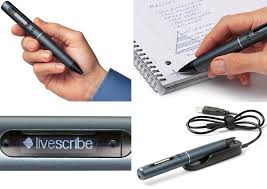
Pulse and Echo Smartpens by Livscribe
http://www.livescribe.com
There are several brands of the Smartpen such as Livescribe, Echo, and Sky. The way it works is the pen records audio and sync notes during class or meetings. The pen automatically will transfer words recorded wirelessly through wifi or a USB cable. Your notes appear instantly on a student's tablet, laptop or smartphone. You pair it with a downloadable application and dotted paper designed specifically for the Smartpen.
Students with auditory or visual disabilities could benefit from a Smartpen because they could record notes and read it back with a modified computer. Also students who aren't able to take notes, listen, comprehend, or process simultaneously could also benefit from using this Smartpen. Students with both low and high incidence disabilities could greatly benefit. The website offers various products related to the Smartpen. The prices are quite affordable, most pens costing under $200. However, the website doesn't offer much advice on whom would best benefit from this product. It would be up to the teacher, IEP team, or student to decide if it will work best.
Pulse and Echo Smartpens by Livscribe
http://www.livescribe.com
There are several brands of the Smartpen such as Livescribe, Echo, and Sky. The way it works is the pen records audio and sync notes during class or meetings. The pen automatically will transfer words recorded wirelessly through wifi or a USB cable. Your notes appear instantly on a student's tablet, laptop or smartphone. You pair it with a downloadable application and dotted paper designed specifically for the Smartpen.
Students with auditory or visual disabilities could benefit from a Smartpen because they could record notes and read it back with a modified computer. Also students who aren't able to take notes, listen, comprehend, or process simultaneously could also benefit from using this Smartpen. Students with both low and high incidence disabilities could greatly benefit. The website offers various products related to the Smartpen. The prices are quite affordable, most pens costing under $200. However, the website doesn't offer much advice on whom would best benefit from this product. It would be up to the teacher, IEP team, or student to decide if it will work best.

IEP Goals and AT
Below is a brief description of students with an IEP. Listed are their present levels of achievement (PLA), their IEP goals and an appropriate AT device that would be useful in helping that student meet
their annual goal.
Student # 1
PLA: Student is a 20 month old with developmental delays. He has begun responding to visual and auditory action toys. His parents are happy to see him respond to toys and make sounds. He sometimes laughs or makes sounds when a toy is activated.
Annual Goals: Student will use a switch or voice output device to actively participate in play experiences to communicate interests to his parents or other caregivers in 4 out of 5 opportunities.
Suggested AT device: I would recommend an electronic touch tablet for a child so young. These are electronic learning toys that introduce letters and writing. Many have large buttons appropriate for young children. They are very colorful and talk. What 20 month old child wouldn't love that? Electronic touch tablets are very interactive. The designs are bright, cute, and appealing. I believe this device will encourage more play experiences to communicate interests to his parents and caregivers which falls in line with his IEP goals.

their annual goal.
Student # 1
PLA: Student is a 20 month old with developmental delays. He has begun responding to visual and auditory action toys. His parents are happy to see him respond to toys and make sounds. He sometimes laughs or makes sounds when a toy is activated.
Annual Goals: Student will use a switch or voice output device to actively participate in play experiences to communicate interests to his parents or other caregivers in 4 out of 5 opportunities.
Suggested AT device: I would recommend an electronic touch tablet for a child so young. These are electronic learning toys that introduce letters and writing. Many have large buttons appropriate for young children. They are very colorful and talk. What 20 month old child wouldn't love that? Electronic touch tablets are very interactive. The designs are bright, cute, and appealing. I believe this device will encourage more play experiences to communicate interests to his parents and caregivers which falls in line with his IEP goals.
IEP Goals and AT
Student #2
PLA: Student is a second grader in a general education classroom for most of the school day. Student has the help of a full-time paraprofessional. Student uses a voice output AAC device and experiences difficultly in the classroom and often has the "wrong answer". Student needs to find ways to actively participate.
Annual Goal: Student will use eye gaze and pre-recorded messages to respond to appropriately phrased questions in four subject area classes which include, math, reading, science, and social studies in 3 out of 5 situations.
Suggested AT device:
I would suggest more low-tech AT options to help support this student in reading and writing. Books on CD as well as Literacy Assisted software and math software can help support struggling students. Listening to books on tape over and over could help with comprehension and recall. Also, literacy software is often visually stimulating and interactive. This type of low-tech AT could help students increase content knowledge.

PLA: Student is a second grader in a general education classroom for most of the school day. Student has the help of a full-time paraprofessional. Student uses a voice output AAC device and experiences difficultly in the classroom and often has the "wrong answer". Student needs to find ways to actively participate.
Annual Goal: Student will use eye gaze and pre-recorded messages to respond to appropriately phrased questions in four subject area classes which include, math, reading, science, and social studies in 3 out of 5 situations.
Suggested AT device:
I would suggest more low-tech AT options to help support this student in reading and writing. Books on CD as well as Literacy Assisted software and math software can help support struggling students. Listening to books on tape over and over could help with comprehension and recall. Also, literacy software is often visually stimulating and interactive. This type of low-tech AT could help students increase content knowledge.
IEP Goals and AT
Student #3
PLA: Student uses a variety of sounds, gestures, signs, and picture/symbols to communicate. He is extremely social and enjoys parallel play. He will only sign when prompted.
Annual Goal: Student will increase expressive language by using a variety of communication methods in the classroom, including sign language, gestures, communication boards, pictures, and simple output devices during 4 out of 5 opportunities.

Suggested AT device: For this particular student I would recommend an iPad. I know how useful iPads can be for special needs students. They are interactive and visually stimulating. Additionally, iPads offer apps to teach sign language, speech, picture boards, as well as social stories which promote positive social interactions. iPads are a great way to communicate with as well as educate special needs students. The adaptive technology of the iPad allows teachers to customize the iPad keyboard and touchscreen to meet each students specific needs.
PLA: Student uses a variety of sounds, gestures, signs, and picture/symbols to communicate. He is extremely social and enjoys parallel play. He will only sign when prompted.
Annual Goal: Student will increase expressive language by using a variety of communication methods in the classroom, including sign language, gestures, communication boards, pictures, and simple output devices during 4 out of 5 opportunities.
Suggested AT device: For this particular student I would recommend an iPad. I know how useful iPads can be for special needs students. They are interactive and visually stimulating. Additionally, iPads offer apps to teach sign language, speech, picture boards, as well as social stories which promote positive social interactions. iPads are a great way to communicate with as well as educate special needs students. The adaptive technology of the iPad allows teachers to customize the iPad keyboard and touchscreen to meet each students specific needs.
IEP Goals and AT
Student#4

PLA: Student communicates with unintelligible sounds. She often becomes angry when others don't understand what she is saying. She likes to be around people including adults and children.
Annual Goals: Student will communicate her interests and needs in 3 or more situations using a single message voice output device.
Suggested AT device: Voice output devices like the one seen above are great to be used by individuals who are unable to speak or whose speech is unintelligible. There are many communication output devices available. It would be up to the IEP team to shop around and find the device that works best for the student. Perhaps this may increase her social interactions, as well as decrease any undesirable behaviors that may have manifested as a result of communication barriers.
PLA: Student communicates with unintelligible sounds. She often becomes angry when others don't understand what she is saying. She likes to be around people including adults and children.
Annual Goals: Student will communicate her interests and needs in 3 or more situations using a single message voice output device.
Suggested AT device: Voice output devices like the one seen above are great to be used by individuals who are unable to speak or whose speech is unintelligible. There are many communication output devices available. It would be up to the IEP team to shop around and find the device that works best for the student. Perhaps this may increase her social interactions, as well as decrease any undesirable behaviors that may have manifested as a result of communication barriers.
IEP Goals and AT
Student # 5
PLA: This student is currently enrolled in a regular education program for their academic subjects. His hand strength is limited and he fatigues easily. He experiences great difficulty writing long assignments that are lengthy.
Annual Goal: Student will use a computer or portable word processor to complete 100% of his assignment in 10th grade English and Civic classes.
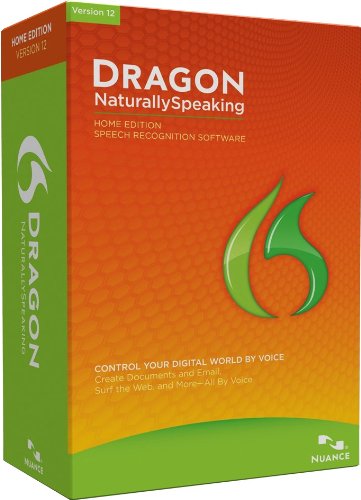
Suggested AT device: I would suggest naturally speaking voice recognition software such as the Dragon Software I discussed in an earlier post. This device would well for this student because he can speak his writing assignment aloud and the software will type out the words for him. This student has limited hand strength and may become frustrated even with the help of a modified keyboard. Because his assignments are long, he would benefit from a device that would do most of the typing for him.
PLA: This student is currently enrolled in a regular education program for their academic subjects. His hand strength is limited and he fatigues easily. He experiences great difficulty writing long assignments that are lengthy.
Annual Goal: Student will use a computer or portable word processor to complete 100% of his assignment in 10th grade English and Civic classes.
Suggested AT device: I would suggest naturally speaking voice recognition software such as the Dragon Software I discussed in an earlier post. This device would well for this student because he can speak his writing assignment aloud and the software will type out the words for him. This student has limited hand strength and may become frustrated even with the help of a modified keyboard. Because his assignments are long, he would benefit from a device that would do most of the typing for him.
AT & the IEP Process
Since 1997 (IDEA) requires that IEP teams must consider AT options for all students when drafting the IEP. According to the 2004 reauthorization of IDEA, assistive technology can be the bridge to enable students with disabilities to participate in the least restrictive environment (LRE). The local educational agency (LEA) is responsible for making sure the AT assessment is done for every student. The AT consideration process gives students the tools that offer success and access to the general curriculum. This process should also be done at each annual review. In addition, the IEP team must consider various forms of assistive technology devices ranging from low to high tech. Ongoing monitoring of student AT use must be implemented as well as provision of training or technical assistance for staff in the use of the AR device. I know to most it may seem like a big pot of special education alphabet soup, however anyone who is serious about being a teacher in special education needs to know about AT and the IEP process.
Sunday, March 9, 2014
AT Modules.....
AT Assessment in the School Environment:
This module discusses the purpose of AT assessment is to find technology options that will work for a student with disabilities. Any AT options should improve, increase, or maintain student functioning. Individuals who receive AT experience better control of their lives, can contribute more fully to the environment around them, and be better equipped to participate in home, school, work, and community settings. Only after the student is able to interact with the AT device can the team begin to make informed decisions about assistive technology options.
AT Consideration in the IEP Process:
IDEA requires that IEP teams consider whether assistive technology is needed for each student. AT consideration gives students tools that offers access to the general education curriculum. Assistive technology gives students with disabilities the opportunity to participate in the LRE. If there are any continuing barriers to learning, the IEP team considers AT solutions. These can be in the form of devices or services. IEP teams need to also be familiar with AT choices.
ASR:
This module gives an overview of automatic speech recognition which benefits those who struggle with the mechanics of writing and spelling as well as those with physical access difficulties. ASR software has improved over the past 5 years so if it didn't work previously candidates should get re-evaluated. I learned that the software for ASR is either built into both the Windows and Mac operating systems or the cost is very cheap. Common types of ASR include Dragon Naturally Speaking Software, SpeakQ, and WordQ. It is also important to consider, the impact of ASR in the disabled person's environment, the training required and that the whole process can be complicated.
http://www.atinternetmodules.org/
This module discusses the purpose of AT assessment is to find technology options that will work for a student with disabilities. Any AT options should improve, increase, or maintain student functioning. Individuals who receive AT experience better control of their lives, can contribute more fully to the environment around them, and be better equipped to participate in home, school, work, and community settings. Only after the student is able to interact with the AT device can the team begin to make informed decisions about assistive technology options.
AT Consideration in the IEP Process:
IDEA requires that IEP teams consider whether assistive technology is needed for each student. AT consideration gives students tools that offers access to the general education curriculum. Assistive technology gives students with disabilities the opportunity to participate in the LRE. If there are any continuing barriers to learning, the IEP team considers AT solutions. These can be in the form of devices or services. IEP teams need to also be familiar with AT choices.
ASR:
This module gives an overview of automatic speech recognition which benefits those who struggle with the mechanics of writing and spelling as well as those with physical access difficulties. ASR software has improved over the past 5 years so if it didn't work previously candidates should get re-evaluated. I learned that the software for ASR is either built into both the Windows and Mac operating systems or the cost is very cheap. Common types of ASR include Dragon Naturally Speaking Software, SpeakQ, and WordQ. It is also important to consider, the impact of ASR in the disabled person's environment, the training required and that the whole process can be complicated.
http://www.atinternetmodules.org/
Saturday, March 8, 2014
iPads for special needs
The video above discusses how teachers at one school feel about the introduction of iPads for special needs students. During the video, teachers express how barriers are broken down for students. Students who wouldn't ordinarily interact were now very happy and excited to use them. Students find them them cool and flashy. Students are willing participants as they enjoy the interactive games and apps.
Additionally, I also read an article from a parent of a special needs from Parents magazine. She advocated for iPads in her son's school as a tool to benefit their children and improve their lives, especially the speech apps, which are worth pushing for. The article also gives suggestions to get iPads for their school such as grant writing and organizations such as DonorsChose.org
Seidman, E. (2011, November 18). IPads For Kids With Special Needs: Get your School Into Them [Electronic version].Parents.
Other Common Types of AT
7. Adapted Keyboard- The standard QWERTY keyboard may work well for most students, however for students with moderate to severe disabilities alternative options must be found. There are several categories of expanded keyboards, one-handed keyboards, on-screen keyboards, and mini-keyboards. A very popular brand of the expanded keyboards is Intellikeys that uses overlays. These overlays are pre-printed keyboard layouts that can be substituted for the standard QWERTY overlay or a customized overlay. The expanded keyboard differs by the tactile or auditory feedback students receive when they make a keystroke. Adapted keyboards are used for a range students with disabilities. Many students who use adapted keyboards have poor fine motor skills or control, cognitive deficits, have no range of motion, can only use one hand, or can't use a standard keyboard.
Dell, A. G., Newton, D. A., & Petroff, J. G. (2012). Assistive Technology in the Classroom (second ed., pp. 185-193). Upper Saddle River, NJ: Pearson Education, Inc.,.

Dell, A. G., Newton, D. A., & Petroff, J. G. (2012). Assistive Technology in the Classroom (second ed., pp. 185-193). Upper Saddle River, NJ: Pearson Education, Inc.,.
8. Portable Word Processor- This lightweight assistive technology device is helpful to kids who have difficulty writing. The Forte portable processor allows students to build keyboarding skills and develop their writing skills. Digital writing with the convenience of portability seems like the perfect low-tech type of AT for students with high-incidence disabilities. There are no games, no Internet, and therefore very little distractions. This device is beneficial for students with attention deficits, spelling difficulties, and poor fine motor skills.
tp://www.greatschools.org/special-education/assistive-technology/961-portable-word-processors.gs

9. Assisted Literacy Software- I found this great program called Literacy Lab. It's a comprehensive literacy instructional program designed to help all students including diverse learners with intellectual, physical, or communication challenges. This program provides beginning literacy instruction based on science and social studies. This program is researched-based and is aligned with common core state standards. It is also ideal as an RTI and ELL intervention.

10. Voice Output Communication Device- Many students with Autism, developmental disabilities, and other acquired disabilities use voice output communication devices to communicate. They help non-verbal students overcome their unique communication barriers. The auditory output gives sensory feedback to help students develop language skills. Some other advantages of voice-output communication devices include clarity of communication, improved receptive language, motor sensory integration principles, development of literacy, and increased verbal speech. DynaVox is the leading provider of speech-generating devices.

11. Type to Learn Software to Teach Keyboarding Skills- Learning how to type seems to be a forgotten skill. Learning keyboarding skills is vital for today's learners. Typing software is a great way for students to build typing skills. Many keyboarding games teach these skills through a variety of online games as well as typing lessons. Many of the popular software programs provide timed-test, dictation practice, speed lessons, and progress reporting.

12. Electronic Touch Tablet- Many of the electronic touch tablets offered are for young children. They offer students the opportunity to learn letters and beginning literacy skills with phonics and letter sounds. The games are interactive and engaging for students. The screen is touch sensitive and young students will grasps concepts quicker and faster. Did I mention how fun these games can be? Young children are made to feel like a big boy or girl because they are using a real computer. Electronic tablets are cheaper and they run on batteries.

Common Types of AT....
Here are some of the commonly found assistive technology devices used in the classroom:
1. Word Prediction Software- This type of software helps during word processing by predicting a word the user plans to type. Think about when you are texting on your phone how the words pop up before you are even done typing the word. Doesn't this help save time? It also helps me spell certain words I sometimes misspell. This type of tool is great for students who struggle with writing primarily.
Products to Consider: Aurora Suite, CO: Writer SOLO
http://www.greatschools.org/special-education/assistive-technology/966-word-prediction-software-programs.gs

2. Talking word processor software- Three frequently used talking word processing programs include Classroom Suite (IntelliTools), WriteOutLoud (DonJohnston), and Talking Word Processor (Premier Assistive Technology). Talking word processing software programs such as these help benefit students who experience difficulty editing their written composition. Talking word processing software gives students the opportunity to hear exactly what they wrote.
http://www.gpat.org/Georgia-Project-for-Assistive-Technology/Pages/WS-Talking-Word-Processing-Software.aspx

3. Naturally Speaking Voice Recognition Software- We have all heard of Dragon Speech Recognition Software. I have seen the commercials so many times myself. However, it wasn't until I started this blog and began researching various AT devices did I fully understand what naturally speaking voice recognition software was. Students with limited writing or fine motor capabilities would find this piece of technology very useful. Dragon is actually the world's best-selling speech recognition software. All it does is turn your talk into text and makes any computer talk easier and faster.
http://www.nuance.com/dragon/index.htm
4. Scan and read software- Kurzweil one of the more popular brands uses Optical Character Recognition (OCR) software that offers multi-sensory approach and access to text. This software provides scanned print documents with the original layout and format which then reads those documents aloud. Viewers have access to everyday reading materials, classroom curriculum, or workplace documents. This software gives students as well as adults with reading difficulties, blindness, and vision impairment opportunities to read that they didn't have before.
http://www.kurzweiledu.com/special/texttospeech/

5. Books on CD- Now this is an oldie but goodie I can relate to unlike some of the previously mentioned products. Sometimes it's easy to feel out of touch or out of the loop with modern technology. Even some special educators are very uncomfortable with assistive technology. Many schools, public libraries, publishing, and software companies offer books on CD. Students who can't decode, read fluently, or on grade level would benefit greatly from this type of adaptions. There are too many companies and brands to mention here.

6. Multi-Sensory Educational Software- I searched online and found a ton of software programs described as being multi-sensory educational programs for sale. They range from teaching children to read to science to math. Many can be customized for individual use, on laptops, or in any classroom. Some are equipped with interactive Whiteboards. Most of these programs are targeted toward students with Dyslexia or other types of learning disabilities. However, I also see these as helping students with executive functioning difficulties, attention disorders, or even just pure tactile learners who need to be stimulated. Boundless Assistive Technology offers ClaroRead for Mac and PC.
http://www.boundlessat.com/Learning/Writing

Subscribe to:
Comments (Atom)